
THE COMPLETE 2026 GUIDE
WhatsApp Flows: Turn One-Tap Responses into Automated Business Workflows
Learn how WhatsApp Flows collect structured customer information inside chat, how Meta's Flow experience works, and how to use Flows in AdsEra Workflows and the Addy AI agent.
Explore AdsEraWhatsApp Flows let a customer open an interactive, multi-screen form inside WhatsApp, choose from options, enter information and submit a response without being pushed to a separate website form. For businesses, this can make lead qualification, appointment requests, quote enquiries, registrations and support intake easier to organise.
The bigger opportunity is what happens after the customer taps Submit. When the response is connected to your CRM and automation, the business can update a contact, create a deal, assign a follow-up task or route the customer to the right team. In AdsEra, the same published WhatsApp Flow can be used from a Workflow or configured as a quick action for Addy, the WhatsApp AI agent.
IN THIS GUIDE
What you'll learn: what WhatsApp Flows are, why structured in-chat forms are useful, what users can enter, how Meta Flows are created and published, how submissions reach a business, how to send them from AdsEra Workflows, how Addy can offer them at the right moment, and what the WhatsApp MCP integration can and cannot do.
1. What are WhatsApp Flows?
WhatsApp Flows are interactive experiences built for the WhatsApp Business Platform. A business sends a message with a Flow entry point. The customer taps the call-to-action, opens the form in WhatsApp, moves through one or more screens and submits the requested information.
A Flow can contain input fields, selection controls, explanatory text, dates, conditional sections and, where supported, media-upload controls. The business defines the screens and the data it wants to collect. Meta's Flow system renders the experience in WhatsApp, while the completed response can be passed back to the business for processing.
Official Meta Developers walkthrough of the WhatsApp Flows Builder. Select the image to watch the tutorial.
Think of a WhatsApp Flow as a form that lives inside the conversation, rather than a link that takes the customer to a separate browser page. It is particularly useful when the business needs several related details in a consistent structure.
A simple customer experience
STEP 1
Receive a message
“Tell us what you need.”
STEP 2
Tap to open
The form opens inside WhatsApp.
STEP 3
Enter details
Choose options or fill required fields.
STEP 4
Submit the form
The answers can trigger the next business action.
Meta Developers' technical introduction to WhatsApp Flows. Select the image to watch the official video.
What a WhatsApp Flow looks like
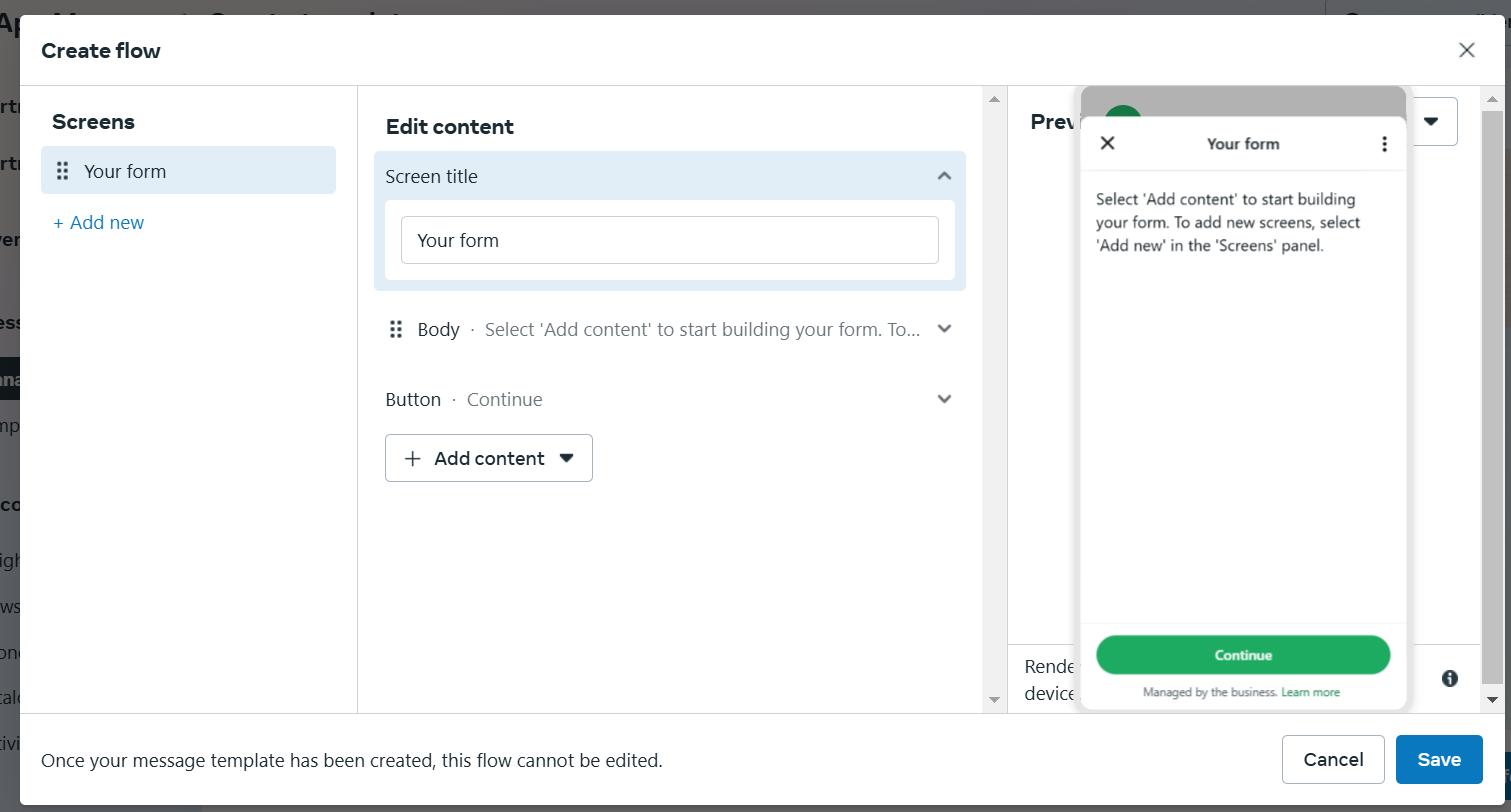
Illustrative screenshot from third-party documentation, not an official Meta screenshot.
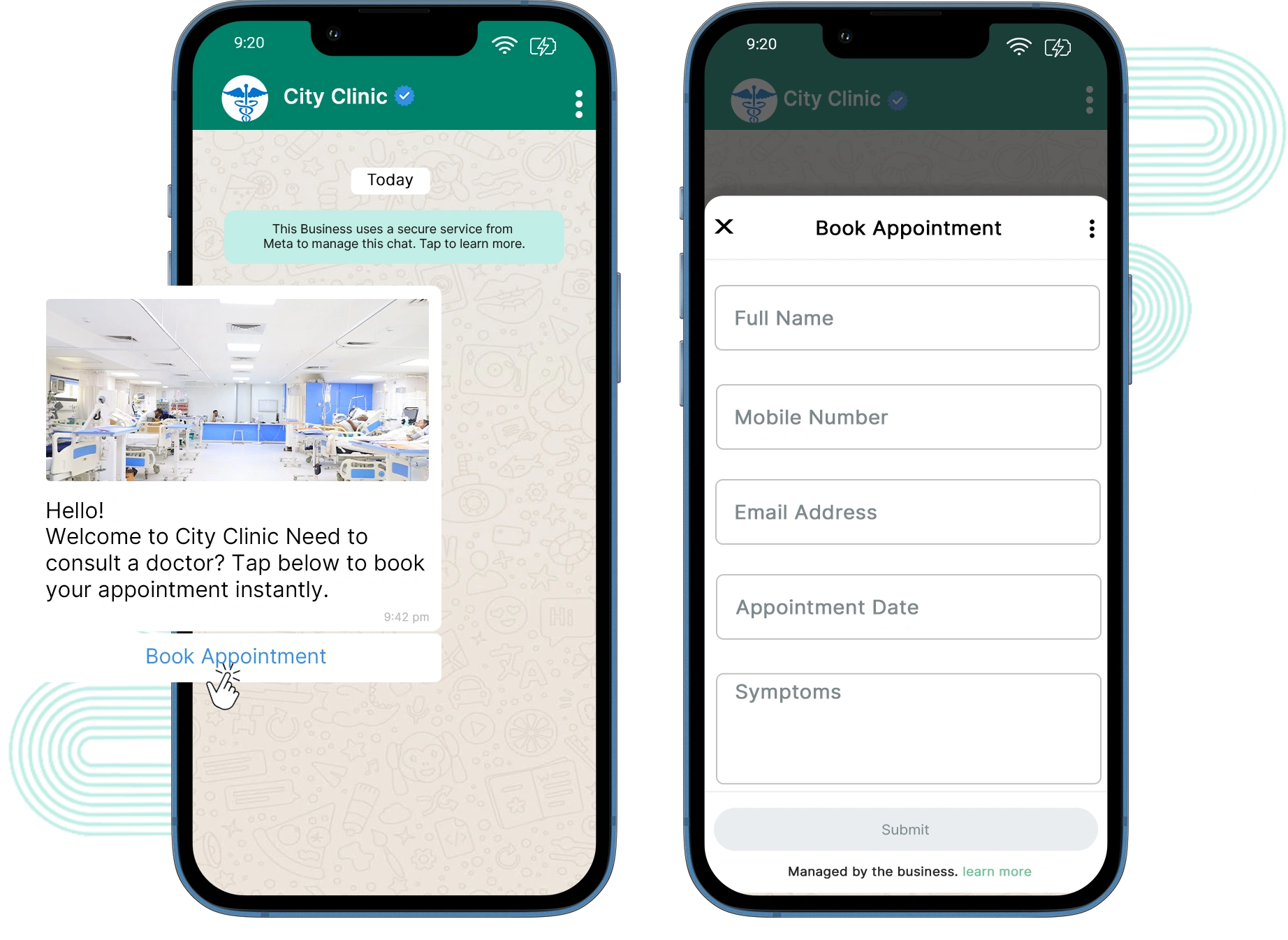
Illustrative appointment Flow example from a third-party source.
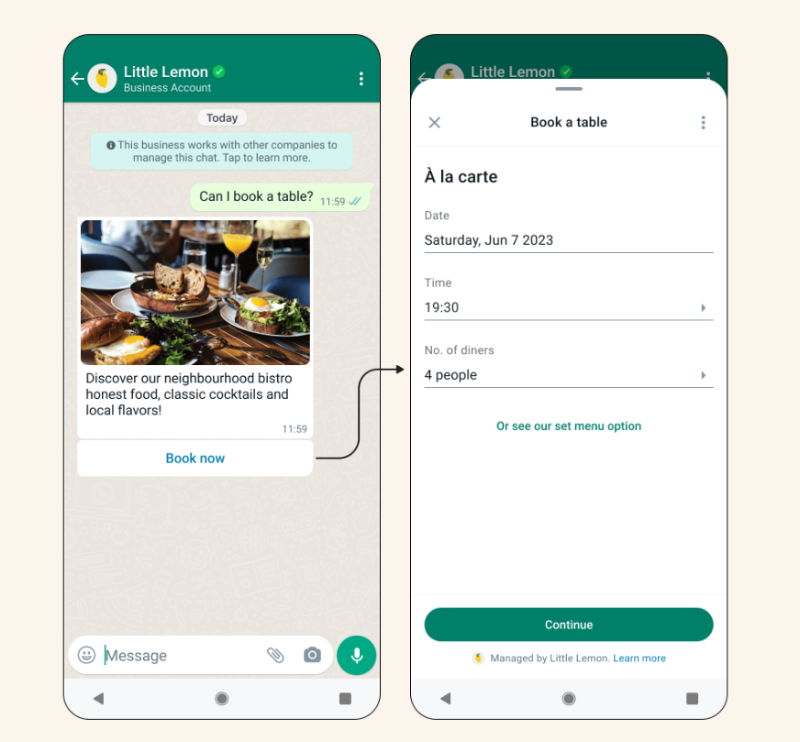
Example of how a booking Flow can appear in a customer chat. Third-party visual.
Watch Meta's official Flow Builder tutorials
Create a Flow with the Flows Builder
Create and send WhatsApp Flow templates
Videos published by Meta Developers. If your blog editor or browser blocks embedded videos, open the official tutorial links in YouTube.
2. WhatsApp Flows vs ordinary WhatsApp messages, buttons and external forms
Not every question needs a Flow. A quick reply button is excellent for a simple choice. A list is useful when the customer is choosing from several options. A Flow becomes more valuable when you need multiple related fields, structured answers or a short multi-screen journey.
| Experience | Best for | Example |
|---|---|---|
| Quick-reply buttons | One short decision | “Yes, book a demo” / “Not now” |
| Interactive list | Choosing one item from a list | Choose a department or service |
| WhatsApp Flow | Several structured answers in a guided form | Name, location, service, budget and preferred date |
| External web form | Longer or specialised web journeys | A detailed application on a website |
The advantage is not that every Flow takes literally one click to finish. It is that one tap opens a purpose-built form, and common answers can be provided with a selection rather than a long typed message. The customer can complete several fields in one guided journey.
3. What information can a WhatsApp Flow collect?
Meta's Flow components support different types of input and presentation. The exact components available depend on the Flow JSON version and the current Meta specification used when the Flow is built.
TextInput
Name, order number, company name or a short answer.
TextArea
A longer explanation, requirement or support issue.
Dropdown / RadioButtonsGroup
Choose one service, product, branch or category.
CheckboxGroup
Select multiple interests, requirements or services.
DatePicker / CalendarPicker
Choose a date or date range for an appointment or event.
ChipsSelector
Make compact selections such as preferences or time slots.
PhotoPicker / DocumentPicker
Share an image or document when the use case needs it.
RichText / NavigationList
Present richer information and guide users through choices.
Meta's Flow changelog documents the progression of components such as CalendarPicker, ChipsSelector, RichText, PhotoPicker and DocumentPicker, as well as conditional rendering and improvements to form validation. Always check the current Meta specification before building against a particular JSON version. Read Meta's WhatsApp Flows changelog.
4. Why WhatsApp Flows are useful for lead generation
Traditional lead intake often asks a customer to type several details into a chat, wait for the next question and repeat the process. That can create incomplete answers, inconsistent wording and extra work for the sales team.
A Flow can put the important questions into one guided experience. The customer can select a service, choose a location, enter a budget and specify a preferred time. The business receives a more structured response that can be mapped to CRM fields and follow-up steps.
Example: a service enquiry Flow
| Screen | Question | Input |
|---|---|---|
| 1. Requirement | What are you looking for? | Dropdown / single choice |
| 2. Location | Which city or area? | Text or options |
| 3. Budget | What is your approximate budget? | Number / range options |
| 4. Timing | When would you like to proceed? | Date / choice |
| 5. Contact | How should our team contact you? | Email / phone / consent as needed |
Once the customer submits the form, the answers can be routed into an AdsEra Workflow. The workflow can update the contact, create a deal, assign a sales task and notify the right person. The form collects the information; the automation makes sure the information is acted upon.
5. High-value WhatsApp Flow use cases
Lead qualification
Capture service interest, location, budget, buying timeline and preferred contact time before a representative calls.
Appointment booking
Collect the preferred date and service, then connect available time slots to a booking system such as Cal.com or Calendly.
Product enquiry
Ask about product category, size, quantity, model or configuration so a sales rep can respond with relevant options.
Customer support
Collect an order reference, issue category, description and an optional image or document for the support team.
Event registration
Let customers select a session, city, attendee type and contact preference in one guided form.
Feedback and surveys
Collect ratings, multiple-choice feedback and optional comments immediately after a service interaction.
6. How WhatsApp Flows work: from design to submitted response
A Flow is more than a button. It includes a screen structure, input names, navigation, validation and an optional data endpoint. The business designs and validates the Flow, publishes it, sends the opening message and processes the submitted response.
Create screens and input components in Flow JSON / Builder
↓
Check fields, screen routing and any data-exchange logic
↓
Make the Flow available to be sent on the connected number
↓
Send a Flow message or an approved template with a Flow button
↓
Customer completes the form and submits their answers
↓
Update CRM, qualify, assign, book or notify the team
Static screens vs live data exchange
A simple Flow can show fixed options and collect information without a custom endpoint. A more dynamic Flow can request live data while the customer is completing it—for example, current appointment slots, available services or a result calculated by your system.
- Static / rule-based Flow: the choices and screen logic are defined in the Flow itself.
- Live data exchange: a secure endpoint returns data to the Flow, which can update what the customer sees or validate a selection.
- Booking integration: AdsEra's form setup can connect a supported Cal.com or Calendly account, a custom slots/booking endpoint or rule-based availability for supported booking flows.
Use live data only when the customer needs information that can change. For a basic lead form, a static Flow may be simpler to build, test and maintain.
7. How to use WhatsApp Flows inside AdsEra Workflows
AdsEra Workflows connect a trigger, message or action, conditions and CRM updates. A WhatsApp Flow can become the structured input step inside that journey. For example, a new lead from a Meta ad can receive a Flow to complete the missing qualification details; the submission can then start the next automation.
Use case: Meta lead → WhatsApp Flow → CRM → sales task
WORKFLOW A · SEND THE FORM
A lead arrives from a connected Meta lead form.
Send a saved Flow form snippet or an inline WhatsApp Flow message.
The response is submitted in WhatsApp.
WORKFLOW B · PROCESS THE RESPONSE
Listen for an incoming message event; Flow submissions are available in the event output as
nfm_reply.Inspect the actual event output and map the answer fields to the correct contact attributes.
Create or update the contact and save the collected fields.
Create or update an opportunity and create the next action for the sales owner.
Route qualified leads to the right salesperson or pipeline stage.
How to configure this in AdsEra
- Create the Flow: Use AdsEra's WhatsApp Forms area to save Meta Flow JSON as a draft for the connected WhatsApp number.
- Validate the Flow: Run the validation step and review any JSON or data-exchange errors before publishing.
- Publish the Flow: Publish the form so that it can be sent. Keep the Flow ID and first screen ID available for the sending step.
- Create a form snippet or use an inline message: Save a form snippet for reuse, or configure a Workflow SNIPPET action with an inline interactive message of type
flow. - Build the entry workflow: Add the relevant trigger, such as Meta lead, form submission, webhook or another customer event, then send the Flow.
- Build the response workflow: Use a WhatsApp Event trigger to process the incoming Flow response payload and map the answer fields.
- Update the CRM: Use contact attributes, deals, tasks, labels and pipeline stages to make the submission useful to the team.
- Test and publish: Test with a dedicated test contact, review the run output and then publish the workflow version.
Important mapping detail: do not guess the response variable path. Inspect the actual output from the Flow response event in your AdsEra run, then map the returned fields to the contact schema. This avoids writing blank or incorrectly mapped values into the CRM.
Example: Flow message payload in a Workflow SNIPPET action
The following illustrates the shape of an inline Flow message. Replace the placeholders with the ID of your own published Flow and its first screen. The message body and button label should describe exactly what the customer is opening.
{
  "inlineMessage": {
    "messageType": "interactive",
    "interactive": {
      "type": "flow",
      "body": {
        "text": "Share a few details so our team can help you."
      },
      "action": {
        "name": "flow",
        "parameters": {
          "flow_message_version": "3",
          "flow_cta": "Start",
          "flow_id": "<PUBLISHED_FLOW_ID>",
          "flow_action": "navigate",
          "flow_action_payload": {
            "screen": "<FIRST_SCREEN_ID>"
          }
        }
      }
    }
  }
}
This is an illustrative message payload, not a complete Flow JSON definition. The Flow itself must already exist and be published. The SNIPPET action's flow message is a session message and is subject to WhatsApp's 24-hour customer service window.
8. How to use WhatsApp Flows inside Addy AI
Addy is AdsEra's WhatsApp AI agent. It can answer customer questions from the business knowledge you provide, ask discovery questions, qualify leads, assist with bookings and hand conversations to your team. A Flow adds a structured form experience when a customer needs to provide several details together.
The strongest approach is not to make Addy send a form at the beginning of every chat. Let Addy understand the customer's request first. When a structured set of answers will help, Addy can offer the relevant published Flow as a quick action.
ADDY + WHATSAPP FLOW
Conversational intelligence with structured input
Addy understands the conversation and decides when to request a more complete set of details. The Flow collects those details in a guided in-chat form. AdsEra can then process the submitted answers through the contact and workflow journey.
Example: Addy qualifies a prospect
Customer: “I want to know more about your service.”
Addy: “Absolutely. I can help you find the right option. May I ask what you are looking for?”
Customer: “I need a solution for my business.”
Addy: “I can understand your requirement better with a quick form. It will take you through a few details.”
Customer taps: “Share requirements”
WhatsApp Flow opens: service category, company size, location, expected timeline and preferred contact time.
After submission: the structured response is available for the connected response workflow to update the contact, prepare a deal and create the next sales task. Addy can continue the conversation using the updated business context and the routing you configure.
Configure a Flow quick action for Addy
AdsEra's Addy configuration supports a rich quick action with the kind flow. The action points to a published Flow ID and the screen to open first. You can define the situation in which Addy should offer it, along with the message and button wording.
{
  "forms": {
    "enabled": true
  },
  "quickActions": [
    {
      "name": "Business requirement form",
      "when": "When a customer is interested and Addy needs several details to qualify the requirement",
      "kind": "flow",
      "body": "Share your requirements in this quick form.",
      "button": "Start",
      "flowId": "<PUBLISHED_FLOW_ID>",
      "screen": "<FIRST_SCREEN_ID>"
    }
  ]
}
This is a configuration example, not a ready-to-save account configuration. Replace both IDs with the actual published Flow and first-screen IDs. Addy's forms setting is intended for official WhatsApp API numbers; confirm the number type and feature availability in the AdsEra dashboard before enabling it.
Where Addy and Flows complement each other
- Use Addy for conversation: answer questions, explain services and understand the customer's intent.
- Use a Flow for structured intake: collect several related fields, choices, dates or supporting documents.
- Use AdsEra CRM for continuity: save the answers to contact attributes and deal records.
- Use Closer and Prospects for sales execution: plan follow-up and help representatives prioritise the opportunities after the lead is captured and routed.
Keep the experience natural. A customer asking a simple question may only need a direct answer. A customer requesting a quote, appointment or tailored recommendation may benefit from a Flow.
9. WhatsApp MCP: how Flow buttons, templates and message sending fit together
The WhatsApp MCP integration exposes relevant WhatsApp Business Platform messaging and template capabilities. Its documented template-creation controls include a FLOW button type. A template Flow button can reference a Flow by ID or by name, and can use a navigation action or a data-exchange action. For a navigation action, the opening screen must be specified.
Meta's changelog also records that message templates can contain a Flow button alongside other button types, and that templates can be created from WhatsApp Manager or through the API. See Meta's Flow and template updates.
What the WhatsApp MCP path covers
- Create a message template with a
FLOWbutton, using a Flow ID or Flow name. - Set the Flow action to
NAVIGATEorDATA_EXCHANGE, with the initial screen for navigation. - Send text and supported interactive messages, or send approved templates through the message API.
- Apply the normal WhatsApp message rules, including the 24-hour customer service window for free-form session messages.
Important implementation distinction: the WhatsApp MCP message-sending interface does not currently expose a send-time field for every Flow button token or payload. A template can be created with a Flow button, but a Flow template that requires a dynamic Flow token should be sent through AdsEra's Flow-aware workflow path or an integration that can pass the required runtime values. Do not assume that a generic template send automatically fills a Flow token.
For a direct in-session Flow message, AdsEra's Workflow SNIPPET action supports an inline interactive message of type flow or a saved form snippet. For a template-based entry point, use an approved template that contains the Flow button and the appropriate sending path. This is particularly relevant when the business needs to start a conversation outside the 24-hour window.
10. WhatsApp Flow messages and the 24-hour customer service window
Flow design does not remove WhatsApp's messaging rules. A Flow sent as a free-form session message is subject to the customer service window: the customer must have messaged the business within the previous 24 hours. Outside that window, the business generally needs an approved message template to initiate or resume the conversation.
Plan the entry point accordingly:
- Inside an open service window: send a session Flow message through a supported interactive-message or saved-snippet path.
- Outside the service window: use an approved template with a Flow button where the selected sending integration supports the required Flow parameters.
- For promotional outreach: use the correct approved marketing template and respect opt-in, opt-out and Meta messaging policies.
A message being accepted by an API is not the same as a customer having received or completed the Flow. Monitor message outcomes and form completions separately.
11. Measure WhatsApp Flow performance
Do not evaluate a Flow only by the number of messages sent. Track the whole journey from Flow open to a useful business outcome. AdsEra's Flow management includes access to Flow insights and a contact's form responses, while the connected workflow can track the CRM actions that follow.
| Metric | What it tells you | What to improve |
|---|---|---|
| Flow opens | How many customers opened the form | Message context and CTA clarity |
| Completion rate | How many completed after opening | Form length, wording and required fields |
| Field drop-off | Where users stop in the form | Remove unnecessary questions or simplify choices |
| Qualified leads | How many responses meet your sales criteria | Question relevance and scoring rules |
| Appointments booked | How many submissions become bookings | Slot availability and booking follow-through |
| Deals and revenue | Whether the form contributes to pipeline | Sales response time, follow-up and offer fit |
12. Best practices for building a high-completion WhatsApp Flow
- Ask only what you need: every additional field adds effort. Start with the minimum information required to route or qualify the request.
- Start with easy choices: use radio buttons, dropdowns or chips where a customer can select a known answer instead of typing it.
- Split long forms into logical screens: group related questions and explain why the information is needed.
- Use clear field labels: ask one thing at a time and show examples only where they reduce ambiguity.
- Validate inputs: use appropriate number, email, date and text constraints supported by the current Flow specification.
- Keep branching relevant: use conditional screens so customers see only the questions that apply to their selection.
- Use live data only when needed: dynamic endpoints are valuable for current availability, booking or lookup, but they add integration and security work.
- Tell customers what happens next: show a clear completion message and explain whether a person will call, a booking will be confirmed or a request has been received.
- Respect privacy: collect only necessary data, explain its purpose and avoid asking customers to enter passwords, payment-card details or other highly sensitive information into a general lead form.
- Test on real devices: check the full journey, validation, back navigation, optional fields and how the submitted answers are saved.
13. Common WhatsApp Flow mistakes to avoid
- Sending a Flow before publishing it: confirm the form status and test the intended published version.
- Making every field mandatory: require only the information needed to proceed.
- Using the wrong first screen ID: ensure the message opens a valid screen that can be used as the starting screen.
- Forgetting to process responses: create a response workflow for the inbound Flow submission event and map the returned fields.
- Guessing response paths: inspect actual event output and map variables from the real schema.
- Using a session message outside 24 hours: choose an approved template entry point where required.
- Assuming a generic template sender supports Flow tokens: verify that the sending method passes all required Flow parameters.
- Failing to test endpoint logic: validate live-data exchange, booking availability and error handling before launch.
14. Meta requirements, publishing and technical notes
Meta's Flow documentation and changelog evolve. It records support for form components, conditional rendering, media upload, calendar selection, Flow previews and template buttons. The same changelog notes that Flow JSON validation and supported versions are updated over time, so do not copy an old JSON version into production without checking it against current documentation.
Meta announced support for opening, completing and viewing Flow responses on WhatsApp Web from early December 2025. Meta also documented additional Flow endpoint security checks in Data API 4.0: platform-side request verification is handled by Meta, while an additional Flow-token signature check is an optional layer for businesses using a data endpoint. Review the current Meta guidance if your Flow uses live data exchange or a custom endpoint.
Meta's changelog has also described business verification and message-quality requirements for publishing and sending Flows. Eligibility can depend on the connected WhatsApp business account and its current status, so check the account's current Meta requirements before rollout.
AdsEra management note: AdsEra's WhatsApp Forms manager supports draft creation from Meta Flow JSON, validation, publishing, deprecation, syncing, insights and reading contact responses. Its managed-form flow currently treats a published form as a release boundary; plan your updates and versioning in the AdsEra interface rather than assuming every Meta API editing option is exposed in the same way.
A faster way: create WhatsApp Flows with AdsEra MCP and an AI assistant
NO NEED TO WRITE FLOW JSON BY HAND
If you're not sure how to structure screens, fields, validation or Flow JSON, you can use the AdsEra MCP tools from an AI assistant such as ChatGPT or Claude (with the AdsEra MCP connection set up). Describe the business use case in plain language and ask the assistant to prepare the Flow JSON, validate it and help save or publish it in AdsEra—where the available MCP actions and permissions allow.
Instead of learning the JSON format first, start with a prompt describing your business, the questions you want to ask, the choices customers should see and what should happen after they submit. The assistant can help translate that brief into a Flow structure and guide the setup using AdsEra's Flow management tools.
PROMPT EXAMPLE · COPY AND CUSTOMISE
Using my connected AdsEra MCP, help me create a WhatsApp Flow for [business type].

Goal: [what I want the customer to do].
Ask the customer for:
- [field 1]
- [field 2]
- [field 3]

Use selectable options wherever possible to minimise typing.
Make the form mobile-friendly, simple and divided into logical screens.
Use required fields only where necessary.
Include validation and a clear submission confirmation.
Generate the Flow JSON, validate it using AdsEra's Flow validation tool, and show me any errors.
Save it as a draft in AdsEra. Do not publish it until I review and confirm.

After saving, explain how to send the Flow from an AdsEra Workflow and how to process its responses.
How the AI-assisted process can work
- Connect AdsEra MCP: connect AdsEra to your supported assistant and grant the required permissions.
- Describe your use case: tell the assistant what customers need to submit, your business type and the intended next step.
- Generate the Flow: the assistant drafts the screens and Flow JSON based on your prompt.
- Validate: use AdsEra's validation tool to check the Flow and data-exchange setup, where applicable.
- Save as a draft: review screen content, input names, logic and IDs before publishing.
- Publish and use: once you approve and publish it, use the form in Workflow actions, saved snippets or configured Addy quick actions.
IMPORTANT · KEEP REVIEW AND PUBLISHING CONTROL
AI-generated Flow JSON still needs validation and review. Confirm the field names, required inputs, privacy wording, screen routing, number/account and endpoint behaviour. Saving a draft is safer than publishing automatically. The assistant's ability to create, validate, save or publish depends on the connected MCP tool set, permissions and available AdsEra actions.
Use this approach to create a starting Flow in minutes rather than beginning from a blank JSON editor. You can ask the assistant to refine it too—for example, “remove one screen”, “make budget optional”, “replace text inputs with a dropdown”, or “make the form suitable for mobile customers”.
The best Flow isn't the longest form. It's the shortest guided experience that collects enough information to move the customer forward.
WhatsApp Flow ideas for different business types
The best Flow isn't a generic form. It should capture the information your business needs to move the customer to the next step. These examples show how businesses can combine a Flow, AdsEra Workflow automation and Addy.
Real estate
Collect: preferred locality, property type, purchase/rent, budget, bedrooms, move-in timeline.
Automate: update lead attributes, create a deal, assign to the local agent and set a site-visit follow-up.
Clinics & healthcare appointments
Collect: department, preferred date, appointment type and patient contact details. Avoid collecting unnecessary sensitive medical details.
Automate: route the request to the appointment team and confirm next steps. Don't treat a submitted preference as a confirmed appointment unless availability is verified.
Education & coaching
Collect: course interest, qualification, preferred batch, city and learning mode.
Automate: create an admissions lead, send course information and assign a counsellor.
Automotive & dealerships
Collect: vehicle/model interest, budget, purchase timeframe, trade-in interest and preferred test-drive location.
Automate: route to the dealership, create a sales task and offer test-drive scheduling.
Retail & ecommerce
Collect: product category, variant, size, quantity, delivery location and help needed.
Automate: route product questions, create an order-support case or offer a catalogue experience.
Hotels & hospitality
Collect: arrival/departure dates, guest count, room type and special requests.
Automate: send availability enquiries to reservations or use a verified booking endpoint to show live options.
Financial services & insurance
Collect: product enquiry, broad eligibility details and callback preference—not credentials or highly sensitive account data.
Automate: assign a specialist and route the customer to approved secure channels for sensitive data.
Restaurants & food service
Collect: reservation date, time preference, party size and occasion.
Automate: connect verified availability, send confirmation and handle follow-up.
B2B & industrial sales
Collect: company, product/service, quantity, use case, location and timeline.
Automate: create a CRM opportunity, route to a product specialist and schedule a follow-up.
Home services
Collect: service type, postcode, preferred date, issue description and optional image.
Automate: assign by service area, create a task and request a quote visit.
Events & communities
Collect: event/session, attendee type, dietary or accessibility requests where relevant and contact details.
Automate: register, segment by session and send reminders or updates.
“Create a WhatsApp Flow for my business using AdsEra MCP. Ask only the information our team needs to take the next step. Use choice fields where possible, make it mobile-friendly, validate it, and save it as a draft. Then propose the Workflow that will process each submission.”
15. WhatsApp Flows FAQs
What is a WhatsApp Flow?
A WhatsApp Flow is an interactive, multi-screen form that customers open and complete inside WhatsApp. It can collect structured details through text fields, selections, date inputs and supported media controls.
Do customers need to leave WhatsApp to fill out a Flow?
No. A WhatsApp Flow is designed to open inside the WhatsApp experience, so the customer can complete the form without being redirected to a separate website form.
Are WhatsApp Flows better than WhatsApp buttons?
They solve different problems. Buttons are ideal for a quick choice or response. A Flow is more appropriate when you need several related answers, structured fields, dates or a guided multi-screen intake.
Can WhatsApp Flows collect multiple fields at once?
Yes. A Flow can include several input and selection components across one or more screens. Keep the form focused and ask only for details needed for the next business action.
Can I use WhatsApp Flows for lead generation?
Yes. You can use a Flow to capture service interest, location, budget, timeline, preferred contact details and other qualification fields. The submitted data can then be processed by a connected CRM or workflow.
Can I use WhatsApp Flows for appointment booking?
Yes. You can collect appointment preferences and connect a supported live-data setup to booking availability. AdsEra's Flow management supports supported Cal.com and Calendly connections, custom booking endpoints or rule-based logic.
Can AdsEra Workflows send WhatsApp Flows?
Yes. AdsEra Workflows can send a saved form snippet or an inline Flow message through a SNIPPET action. A separate WhatsApp Event workflow can process the returned Flow response data and update CRM records or trigger follow-up actions.
Can Addy AI send WhatsApp Flows?
Addy can be configured with a Flow quick action using a published Flow ID and first screen. This lets Addy offer a structured form when the conversation needs more details. Configure the response-handling workflow so the submitted answers are saved and acted on.
Can I send a WhatsApp Flow outside the 24-hour window?
A free-form session Flow message is subject to the 24-hour customer service window. Outside that window, use an approved template with a Flow button and a sending integration that supports the required Flow parameters.
Does the WhatsApp MCP integration create and publish Flow JSON?
The WhatsApp MCP template controls can attach a Flow button to a message template, but the documented messaging connector does not expose a complete standalone Flow JSON builder and publisher. AdsEra's WhatsApp Forms management provides the draft, validation, publish and response-management path.
How do I see WhatsApp Flow responses in AdsEra?
Use the Flow responses view for the contact and/or a WhatsApp Event trigger that receives the Flow submission as an nfm_reply event payload. Inspect the returned output to map the fields accurately into contact attributes and workflow actions.
Final thoughts: use WhatsApp Flows to collect information—and AdsEra to act on it
WhatsApp Flows make structured customer input part of the conversation. They are useful when a business needs more than a “yes” or “no” button but does not want to send every customer to a separate web form.
The real value appears when the submitted answers lead to a useful next step. With AdsEra, a published Flow can be sent inside a Workflow or offered by Addy as a quick action. The response can then feed the contact record, a deal, a task, a booking process or a sales handoff.
Use Addy to understand the customer. Use a WhatsApp Flow to collect the details. Use AdsEra Workflows and CRM to make sure the business acts on them.
MAKE EVERY RESPONSE ACTIONABLE
Connect WhatsApp Flows with AdsEra Workflows and Addy AI
Build guided in-chat forms, capture structured information and connect each submission to the next customer or sales action.
Explore AdsEraOfficial resources and further reading
- Meta for Developers — WhatsApp Flows changelog: Flow JSON versions, components, templates, Builder and endpoint updates.
- Meta Developers — Create a New WhatsApp Flow using the Flows Builder: official video walkthrough.
- WhatsApp Business Platform documentation: messaging, templates, Cloud API and platform concepts.
Editorial and technical note: This guide combines AdsEra's current Workflow, WhatsApp Forms and Addy capabilities with the connected WhatsApp Business messaging controls and public Meta documentation. Feature access depends on number type, account eligibility, Flow status, plan and integration setup. Meta may update API versions, components and publishing requirements; verify the current specification before implementing a production Flow. The Meta Developers visual above is from its official Flow Builder tutorial; all trademarks and product names belong to their respective owners.