
The Ultimate Guide to WhatsApp Business API Compliance
Master WhatsApp Business API compliance! From Meta's verification prerequisites and opt-in rules to the new 2025 pricing model, we cover it all. Learn how to verify your business, avoid bans, and set up billing correctly to scale your messaging. Read the full guide now.
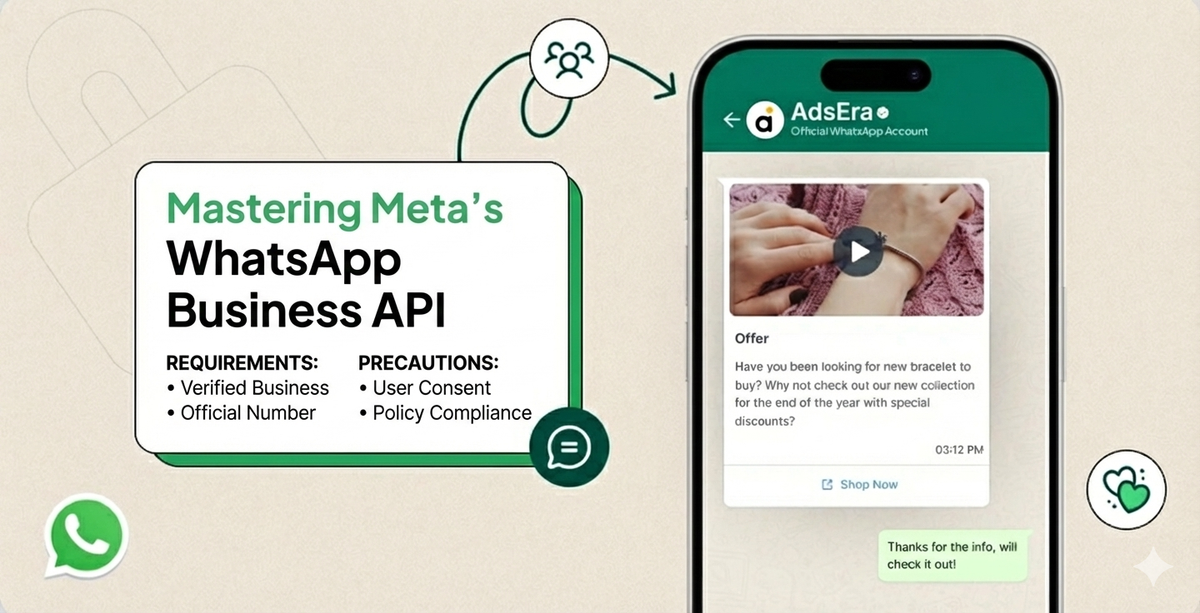
The WhatsApp Business API (now the WhatsApp Business Platform) is a powerful engine for scale, but it runs on Meta's strict rules. Non-compliance doesn't just halt your automation—it can lead to restrictions or permanent bans.
This guide breaks down exactly what Meta requires, ensuring your business is not only approved but also positioned for sustainable, high-quality messaging.
Part 1: The Essential Prerequisites (Getting Approved by Meta)
Before you can send a single API message, Meta needs to verify that your business is real, legitimate, and set up for responsible communication. This is the Foundation phase.
1. The Meta Business Manager (MBM) Foundation
This is the central hub for all your Meta assets, including your WhatsApp Business Account (WABA).
| Requirement | Detail | Why it Matters |
| Active MBM Account | You must have a registered MBM account with admin access. | It links your business identity, Facebook Page, and ad accounts to your WhatsApp profile. |
| Completed Business Info | All fields—legal business name, address, phone number, and website—must be filled out in the MBM’s Business Info section. | Crucial: These details must exactly match the legal documents you submit for verification. |
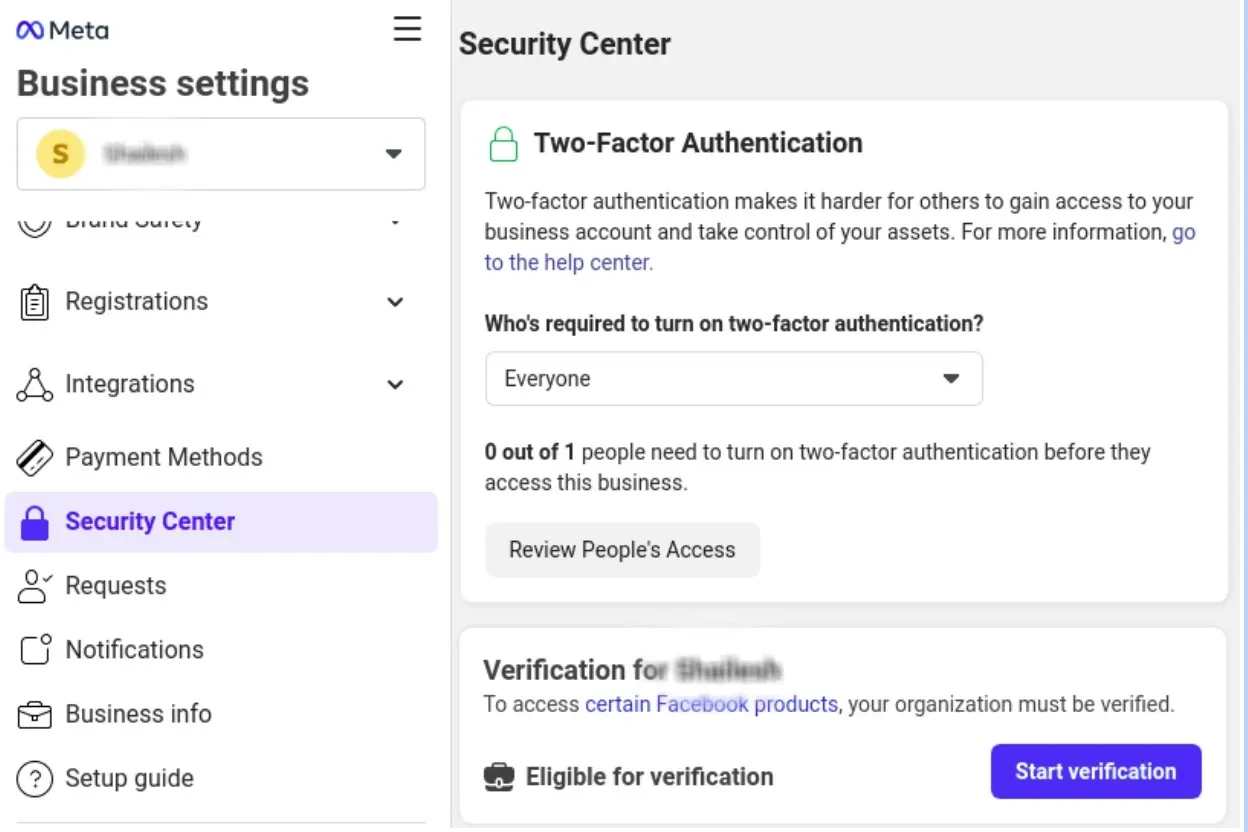
| Two-Factor Authentication | Enabling 2FA on the MBM owner's account is a necessary security measure for most verification processes. | Adds an essential layer of security and is often mandatory for verification. |
2. Mandatory Business Verification
This is the most critical hurdle. Meta validates your legal existence to ensure consumer trust.
| Requirement | Detail | Common Accepted Documents |
| Legal Entity Proof | Provide official documents confirming your legal business name and status. | Certificate of Incorporation (COI), GST/VAT Registration Certificate, Business License. |
| Address/Contact Proof | Documents that verify the business address and/or phone number listed in your MBM. | Utility Bill (under company name), Bank Statement, Official Government Documents. |
| Consistency is Key | The name and address on your documents must be identical to the information entered in your MBM profile. | Mismatches are the #1 cause of verification delays and rejection. |
You can continue using the WhatsApp Business API even without Business Verification. However, without verification, you are limited to up to 250 template messages per day. Additionally, template approval may take longer, typically ranging from 6 to 24 hours.
To unlock higher messaging limits and faster approvals, completing Business Verification is recommended.
3. The Dedicated WhatsApp Phone Number (if you want to onboard directly on the WhatsApp API
You cannot use a number that is currently active on the consumer WhatsApp app or the free WhatsApp Business App.
- Fresh Number: The number must be either new or completely deactivated from any existing WhatsApp product.
- OTP Capable: It must be able to receive an OTP (One-Time Password) via SMS or a voice call for immediate verification during setup.
- Best Practice: Use a dedicated, reliable business line that can handle the scale of API communication.
4. Onboarding via WhatsApp Coexistence
WhatsApp Coexistence allows the same phone number to be used on both the WhatsApp Business App and the WhatsApp Business API. While this offers flexibility, Meta recommends following the guidelines below to ensure stability and compliance.
Eligibility & Recommended Requirements:
Before enabling coexistence, ensure the following:
- Phone number should be active on WhatsApp for at least 6 months
New or recently registered numbers are more likely to face restrictions, sync issues, or verification delays. - Number must have a clean messaging history
Avoid numbers with spam reports, frequent blocks, or prior policy warnings. - Stable device & network environment
Frequent device changes or re-logins on the Business App can impact API reliability.
Important Precautions (Must Read)
- Actions in the Business App affect API behavior
Logging out, reinstalling the app, or resetting the phone can disrupt API messaging. - Delayed message synchronization
Chats, read receipts, and message states may not sync instantly between the app and API. - Template and automation dependency
Automated flows and templates work only via the API, not from the Business App interface. - Risk of temporary disconnection
Unexpected app actions or policy triggers may temporarily disconnect the API. - All Meta policies still apply
Coexistence does not bypass messaging limits, template rules, or quality ratings.
Pros of WhatsApp Coexistence:
✅ Manual + Automated Messaging Together
Use the Business App for manual chats while running automation through the API.
✅ No Immediate App Removal Required
Businesses can continue using the Business App without migrating fully to API-only.
✅ Smooth Transition to API
Ideal for businesses gradually moving from app-based usage to full automation.
✅ Customer Trust Retained
Existing chat history and familiar app interface remain available.
Best suited for low to medium traffic; heavy automation may face instability.
5. Display Name Approval
The display name is the official name customers see, and it must be approved by Meta.
- Guideline: Must clearly represent your business and be consistent with external branding (website, legal documents).
- Prohibited: Cannot be all uppercase, contain illegal characters, or use names that suggest it is an official WhatsApp product (e.g., "WhatsApp Support" or "WhatsApp Chatbot").
- Note: Your display name approval is usually processed automatically after successful Business Verification.
Part 2: Policy Precautions (Sustaining a Healthy Account)
Once approved, the focus shifts from Validation to Conduct. Meta’s policies govern what you can send and how you can communicate to maintain a High-Quality Rating.
1. Explicit Opt-In: The Foundation of Trust
This is the golden rule: Every user must explicitly agree to receive messages from your business on WhatsApp.
| Requirement | Detail | Precaution (Best Practice) |
| Clear Consent | The opt-in method must clearly state that the user is consenting to receive messages on WhatsApp. | Do not use a blanket opt-in (e.g., "agree to terms"). Use a separate checkbox specifically for WhatsApp. |
| Message Type | The opt-in must state the type of messages they will receive (e.g., promotional offers, order confirmations, reminders). | Segment your opt-ins (e.g., "Receive Order Updates" vs. "Receive Marketing Promotions"). This manages expectations and reduces blocks. |
| Opt-In Records | You must be able to provide proof of opt-in (screenshot, timestamp, source) if Meta requests it. | Maintain a secure log of every user's consent status and timestamp. |
2. Message Templates and the 24-Hour Window
WhatsApp enforces a 24-hour Customer Service Window to prioritize user experience and prevent spam.
A. The 24-Hour Session
- What is it? A 24-hour period starts when a customer sends you a message.
- Messaging Allowed: During this window, you can send free-form, non-template messages (Session Messages) about any topic related to the user's inquiry.
- The Precaution: Once 24 hours pass, the "session" closes, and you must revert to using only pre-approved Message Templates.
B. The Message Template (Business-Initiated)
- What is it? Pre-approved message formats required for any message you initiate, or any reply sent outside the 24-hour window.
- Template Categories:
- Utility: Confirms a transaction or addresses an ongoing, agreed-upon request (e.g., Order Confirmation, Shipment Update, Billing Statement).
- Marketing: Promotional content, offers, upselling, or inviting the user to re-engage.
- Authentication: Sending one-time passcodes (OTP) for user verification.
C. Template Creation Rules (Must Follow)
Content Guidelines
- Templates must be clear, specific, and non-misleading
- No spam-like, aggressive, or deceptive language
- No unsupported claims or fake urgency
- Must match the selected template category
- No policy-restricted content (adult, gambling, drugs, hate, etc.)
Variable Rules (Very Important)
- ❌ Variables cannot be placed at the start or end of a template
- ✅ Variables must be written as:
{{name}},{{order_id}}, etc. - ✅ Sample values must be added for each variable
- ❌ Variables cannot replace important context or call-to-action
Example (Correct):
Hi {{name}}, your order {{order_id}} has been shipped.
Example (Incorrect):
{{name}} has been shipped.
Formatting Rules
Supported formatting:
- Bold →
*text* - Italic →
_text_ - ~Strikethrough~ →
~text~
❌ Emojis should be minimal and relevant
❌ Excessive symbols or capitalization may cause rejection
Buttons & Media
- Up to 10 buttons allowed per template
- Supported buttons:
- Call to Action (Call / URL)
- Quick Replies
- One call button & Two URL button supported
- Button text must be clear and non-misleading
- URLs must be valid and safe
Template Approval Timeline
- Without Business Verification:
⏳ Approval may take 6–24 hours - With Business Verification:
⚡ Approval is usually faster (5 sec to 24 hours)
⚠️ Approval time may increase during high review volume or policy checks.
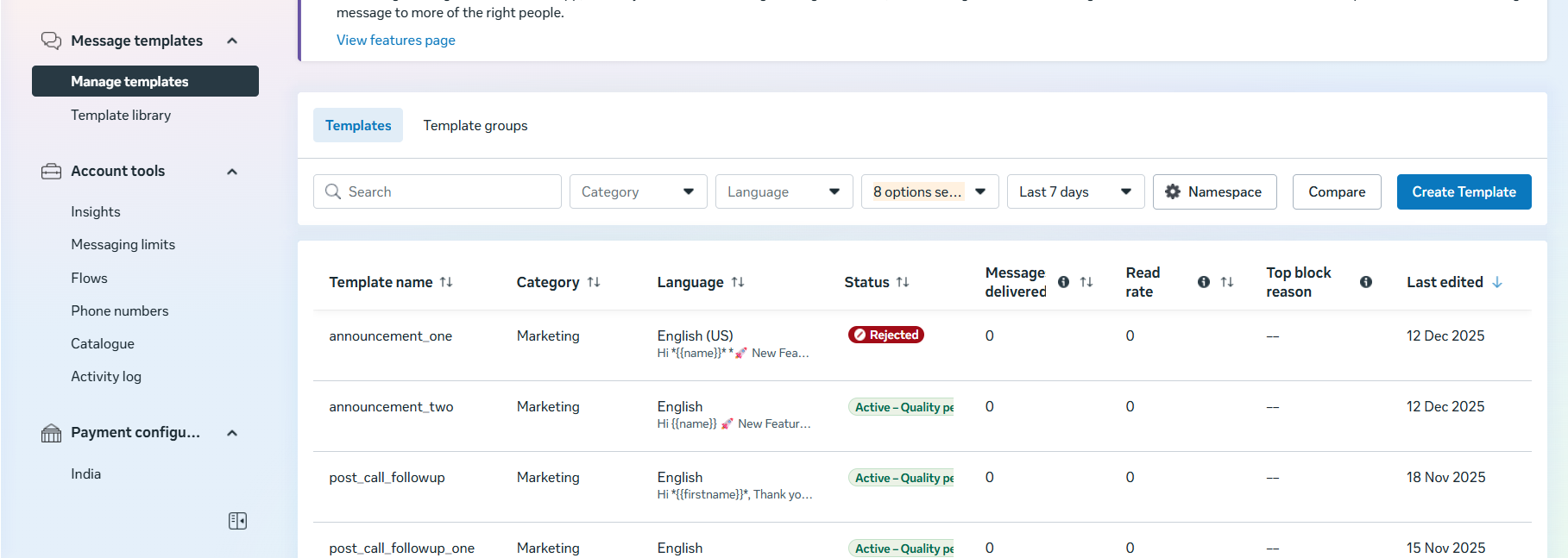
Template Editing Rules:
- ✅ Templates can be edited after creation
- ❌ Template name and category cannot be changed
- 🔄 A template can be edited up to 3 times within a 30-day period
- ⏳ Each edit requires re-submission and approval from Meta
- ⚠️ Exceeding the edit limit may show you error.
3. Prohibited Content and Regulated Industries
Meta's Commerce Policy and Business Policy strictly prohibit certain types of businesses and content.
| Violation Type | Examples of Prohibited Content/Businesses | The Risk |
| Prohibited Goods/Services | Illicit drugs, tobacco, weaponry, live animals, adult content, real money gambling (in most regions), unapproved supplements. | Immediate account restriction or permanent ban. |
| Misleading or Deceptive | Phishing, scams, deceptive business models, or content that misrepresents your product or service. | Account ban and damage to business reputation. |
| Requesting Sensitive Data | Never ask for full payment card numbers, bank account details, government-issued IDs, or sensitive medical records. | Policy violation and potential security risk for the user. |
4. Number Monitoring, Quality, and Scaling Limits
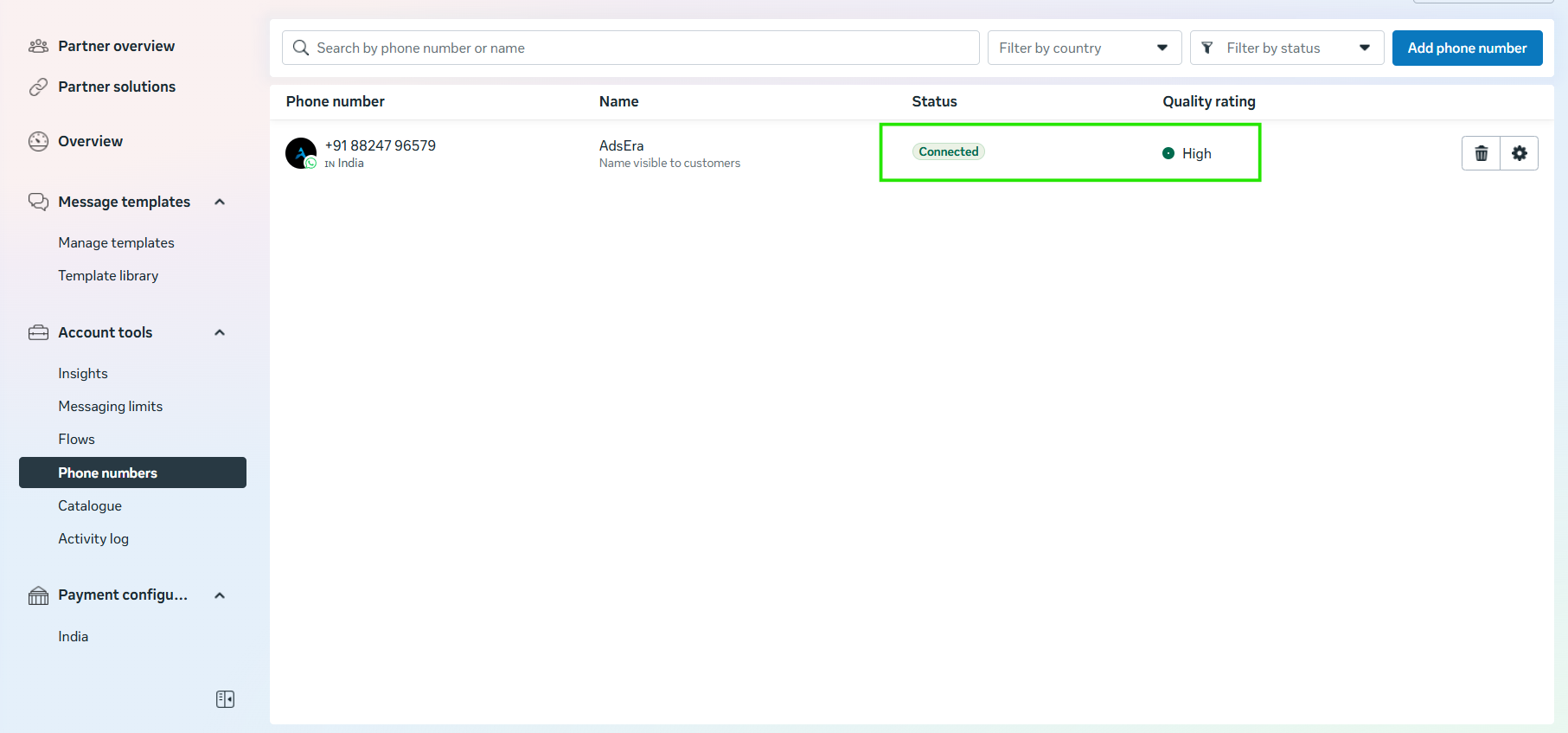
Compliance is a daily commitment, not a one-time approval. In the WhatsApp Manager (within your Meta Business Manager), you have access to metrics that reveal your health score. This score, the Quality Rating, directly governs your ability to scale.
1. The Quality Rating: Your Account Health Score
Meta assigns a Quality Rating to your phone number based on customer feedback (blocks, reports, etc.) over the last seven days, with more recent events carrying heavier weight.
The Three Quality States:
| Rating | Color | Meaning & Implication |
| High | 🟢 Green | Your messages are relevant and highly received by users. This is the ideal state for scaling your limits. |
| Medium | 🟡 Yellow | Your messages are receiving some negative feedback. This is a warning state; automatic limit increases may stop. |
| Low | 🔴 Red | Your business has received a high volume of negative feedback (blocks/reports). This triggers an immediate status change to Flagged. |
Key Factors Influencing the Rating:
The rating is a direct measure of user happiness. Factors that reduce your quality rating include:
- Excessive Blocks: Customers blocking your number.
- High Reports: Customers reporting your message as spam.
- Irrelevant Templates: Sending messages that don't match the user's opt-in consent (e.g., sending marketing when they only opted for utility updates).
- Sending Frequency: Bombarding users with too many messages in a short period.
- Template Quality: Vague, poorly written, or overly commercial templates.
Statuses: Restrictions and Blocking:
If your Quality Rating drops or your usage exceeds limits, your number's status will change, leading to restrictions.
| Status | Trigger | Impact |
| Connected | High (Green) or Medium (Yellow) Quality Rating. | Normal operation. You can send messages up to your current messaging limit. |
| Flagged | Quality Rating drops to Low (Red). | A warning period. You cannot upgrade your messaging limit tier while flagged. |
| Restricted | You have reached your current messaging limit in a 24-hour period. | You cannot initiate any new business-initiated conversations until the 24-hour window resets. You can still respond to customer-initiated messages. |
Flagged Status Recovery: If your status is Flagged, your quality must improve to High or Medium and remain there for seven consecutive days. If it doesn't improve, your status will return to Connected, but your messaging limit will be downgraded to a lower tier.(Make sure meta can block you number is they find you are now following the policy.)
Scaling Your Messaging Limits (The Tier System):
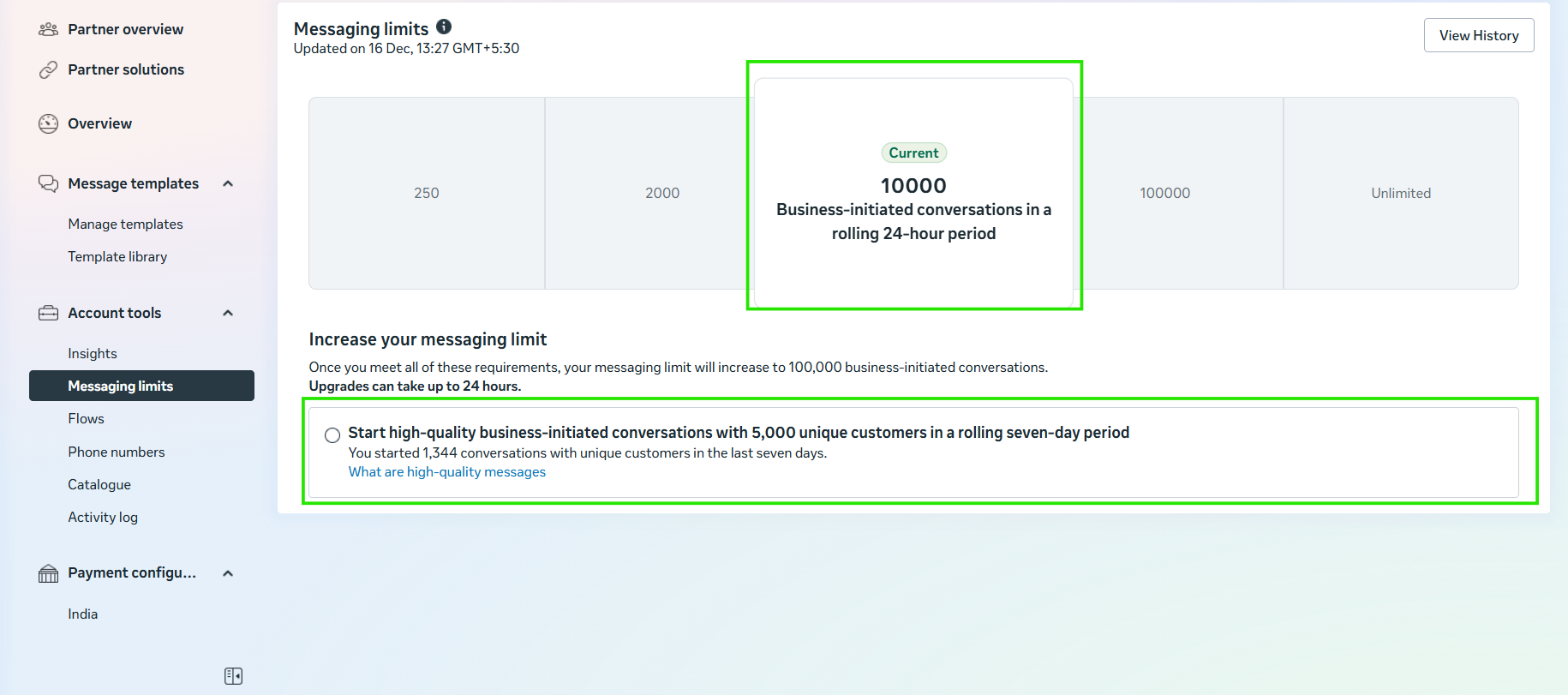
The WhatsApp Business API operates on a tier system that dictates how many unique customer-initiated conversations your business can start in a rolling 24-hour period.
| Tier | Unique Contacts per 24 Hours |
| Default | 250 |
| Tier 1 | 2K (2,000) |
| Tier 2 | 10K (10,000) |
| Tier 3 | 100K (100,000) |
| Tier 4 | Unlimited |
How to Increase Your Sending Limit (Automatic Scaling):
Limit increases are almost always automatic and happen every 24 hours, provided you meet Meta's strict criteria. The process has two main stages:
A. Achieving Tier 1 (From 250 to 2K)
To move beyond the initial 250 limit, you typically need to:
- Complete Business Verification: This is a crucial first step (as detailed in Part 1).
- Maintain High/Medium Quality: Your Quality Rating must be Green (High) or Yellow (Medium).
- Demonstrate Usage: Send a consistent volume of high-quality messages.
B. Automatic Scaling (From 2K to Unlimited)
Once you reach the 2K limit, the following criteria trigger an upgrade to the next tier:
- Status is Connected: Your number must not be Flagged or Restricted.
- Quality Rating is Medium (Yellow) or High (Green).
- High Utilization: You must have initiated a number of conversations equal to at least half (50%) of your current tier limit within the past seven days (e.g., if you are at the 10K limit, you need to send 5,000 or more messages in 24 hours).
If these conditions are met, your limit is typically increased by one tier automatically within 24 hours.
How Limits Are Decreased:
Your messaging limit can be automatically decreased (downgraded) immediately or after a warning period if:
- Your phone number status changes to Flagged (Low Quality) and the quality rating does not improve after the 7-day review period.
- You receive a high volume of negative user feedback (reports/blocks) that significantly impacts your Quality Rating.
5. Action Plan: How to Keep the Green Light and Scale
The secret to scaling is focusing on quality, not just volume.
- Audit Your Templates: Immediately review and pause any Message Templates that have a low quality score (indicated in the WhatsApp Manager). Rewrite them to be clearer and more relevant.
- Refine Opt-In Strategy: Ensure your opt-in process is explicit and transparent. If users consented only to "Order Updates," do not send them "Promotional Offers."
- Segment Your Audience: Send messages only to the most relevant customers. High-quality messages sent to a small, relevant audience are better than irrelevant messages sent to a mass audience.
- Respond Quickly: Maintain a rapid response time to customer-initiated conversations to boost engagement signals.
- Include Opt-Out: Make it extremely easy for users to say "STOP." This reduces the likelihood of them hitting the severe "Block" button.
Part 3: Billing, Charges, and Avoiding the "Billing Eligibility Issue"
A compliant, high-quality account is useless if the money doesn't flow. Meta operates on a conversation-based pricing model, and failure to set up billing correctly will immediately halt your messaging capabilities.
1. The Critical Billing Prerequisite
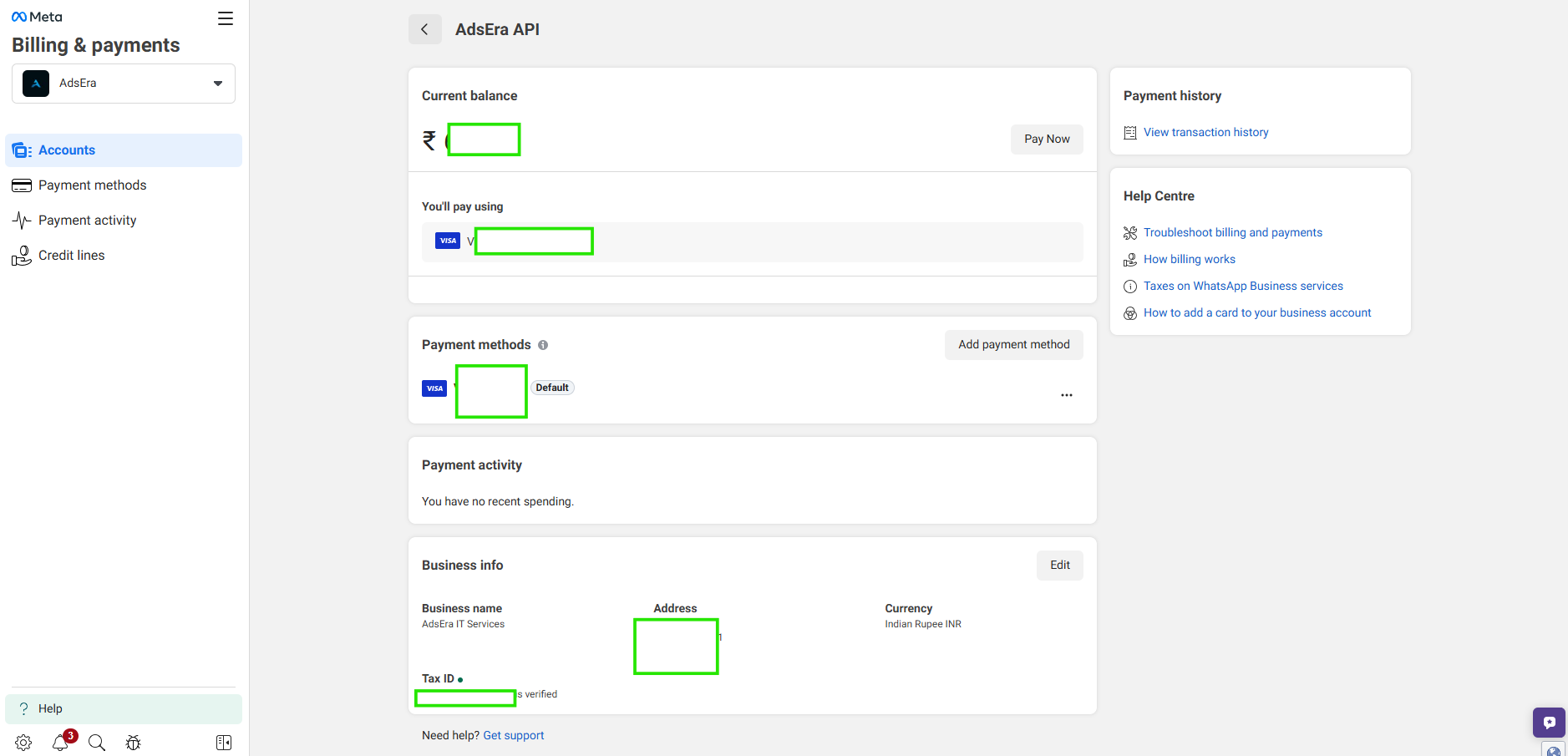
Meta strictly requires valid payment information on file before your WhatsApp Business Account (WABA) is eligible to initiate any chargeable conversations.
| Requirement | Detail | Why it's Non-Negotiable |
| Payment Method | A valid credit card or debit card must be added to your Meta Business Manager's Billing section. | This ensures Meta can collect payment for business-initiated conversations. Without a payment method, you will be blocked from sending chargeable messages. |
| Billing Information | You must complete your billing profile with your business name, address, and, crucially, your Tax ID/VAT number (if applicable in your region). | This ensures tax compliance and invoice generation. Incomplete information often triggers eligibility errors. |
| Billing Eligibility Issue | If you see the error "Billing Eligibility Issue" when attempting to send a template, it means one of the above prerequisites is not met. | Action: Immediately check your Billing settings in the Meta Business Manager to ensure the card is valid, has funds, and all billing details are complete. |
Note on Payment Methods: Meta typically accepts major credit cards (Visa, Mastercard, Amex) and major debit cards. Payment methods are processed securely through the Meta payment system, similar to Facebook and Instagram advertising.
2. The New Pricing Model: Charged Per Template Message
Effective July 1, 2025, Meta moved away from charging a single fee for a 24-hour conversation. Instead, businesses are charged per template message delivered, depending on the template category and the recipient’s country.
Conversation Categories (Determining the Charge)
Charges are now defined by the message template category, as set during the template approval process:
| Category | Typical Use Case | When Charged |
| Marketing | Promotions, offers, announcements, retargeting campaigns. | Always charged per message delivered, regardless of the 24-hour window status. (Highest rate) |
| Authentication | One-time passcodes (OTP), account verification, account recovery. | Always charged per message delivered, regardless of the 24-hour window status. (Generally low rate) |
| Utility | Order confirmations, shipment updates, payment reminders, non-promotional alerts. | Charged per message delivered only when sent outside a 24-hour service window. |
| Service (User-Initiated) | The business's response (free-form or Utility template) to a customer inquiry. | Not charged. Utility templates sent within the 24-hour window are FREE. |
3. Key Charging Rules (When Meta Charges)
A. When Charges Are Incurred (Paid Messages)
Meta charges for template messages when:
- You send a Marketing template. (Any time).
- You send an Authentication template. (Any time).
- You send a Utility template outside the 24-hour service window (meaning the customer has not messaged you in the last 24 hours).
- The charge is applied per message delivered.
B. When Messaging is FREE
To encourage customer support, Meta provides key free zones:
- Free-Form Messages in the 24-Hour Window: Any non-template text, image, or media message sent in response to a user within 24 hours of their last message is FREE.
- Free Tier: Your WABA is typically granted unlimited Free Service Conversations (User-Initiated Conversations) per month, which means you can reply to any incoming customer query for free, provided you respond within the 24-hour window.
C. International Rates
Template message rates vary significantly based on the user's country code, not the business's location. Sending a Marketing template to a user in the US costs a different rate than sending one to a user in India.
Conclusion: Compliance is the Key to Scale
Navigating the world of the WhatsApp Business API can feel like walking a tightrope between massive opportunity and strict regulation. But remember: Meta’s rules aren't just red tape—they are designed to build trust.
By strictly adhering to the Prerequisites (like a verified Business Manager and Tax ID) and mastering the Precautions (such as explicit opt-ins and quality monitoring), you aren't just avoiding a ban. You are building a high-quality, sustainable communication channel that your customers will actually value.
To recap your roadmap to success:
- Get Verified First: Don't skip the foundational business verification steps.
- Respect the Opt-In: Only message users who want to hear from you.
- Watch Your Quality: Monitor your rating daily to keep your sending limits high.
- Manage Your Billing: Ensure your payment methods and Tax IDs are always up to date to avoid service interruptions.
🚀 Ready to Launch Your WhatsApp Strategy?
You don’t have to navigate these complex policies alone. As your trusted WhatsApp Business Solution Provider , we handle the technical heavy lifting and compliance checks for you.
Whether you need help getting your Blue Tick verification, setting up your first automation flow, or auditing your templates, our team is here to guide you.